
eSIM Activation 2025: Setup Guide & Troubleshooting Tips
Activate your eSIM in minutes. Step-by-step guide for iPhone & Android, QR code setup, manual entry & troubleshooting tips.
In this article
Install your eSIM via QR code or with SM-DP+ manual entry. This guide includes a pre-flight checklist, APN tips, roaming settings, and fixes for the most frequent activation errors on iPhone and Android.
Before you start: quick checklist
- Stable Wi-Fi connection during installation.
- Device is eSIM-compatible and unlocked.
- Have your QR code or SM-DP+ & Activation Code ready.
- Latest iOS/Android and Carrier settings installed.
- Disable VPN and Battery Saver while activating.
Activate your eSIM
- Settings → Cellular (Mobile Data) → Add eSIM/Add Cellular Plan.
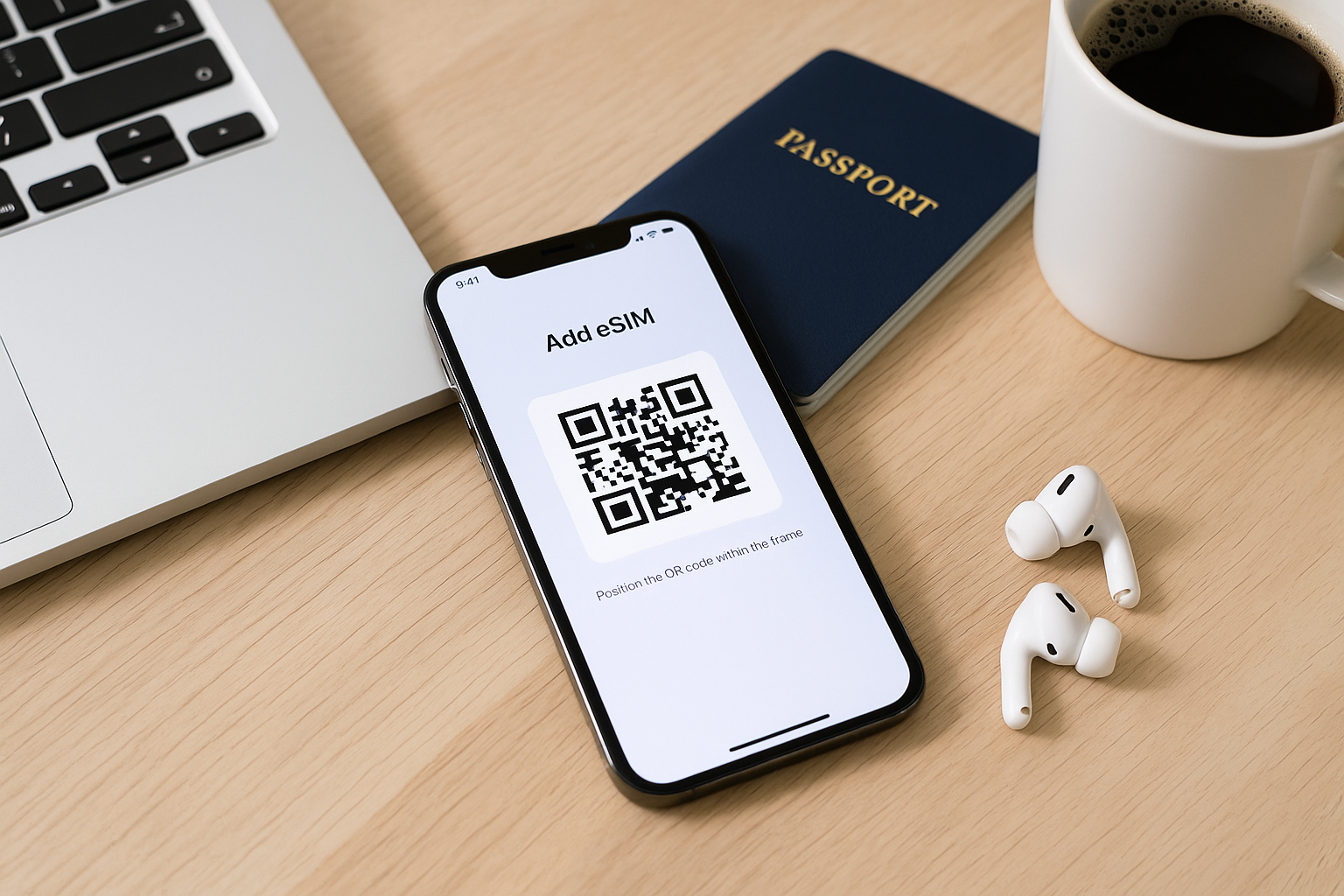
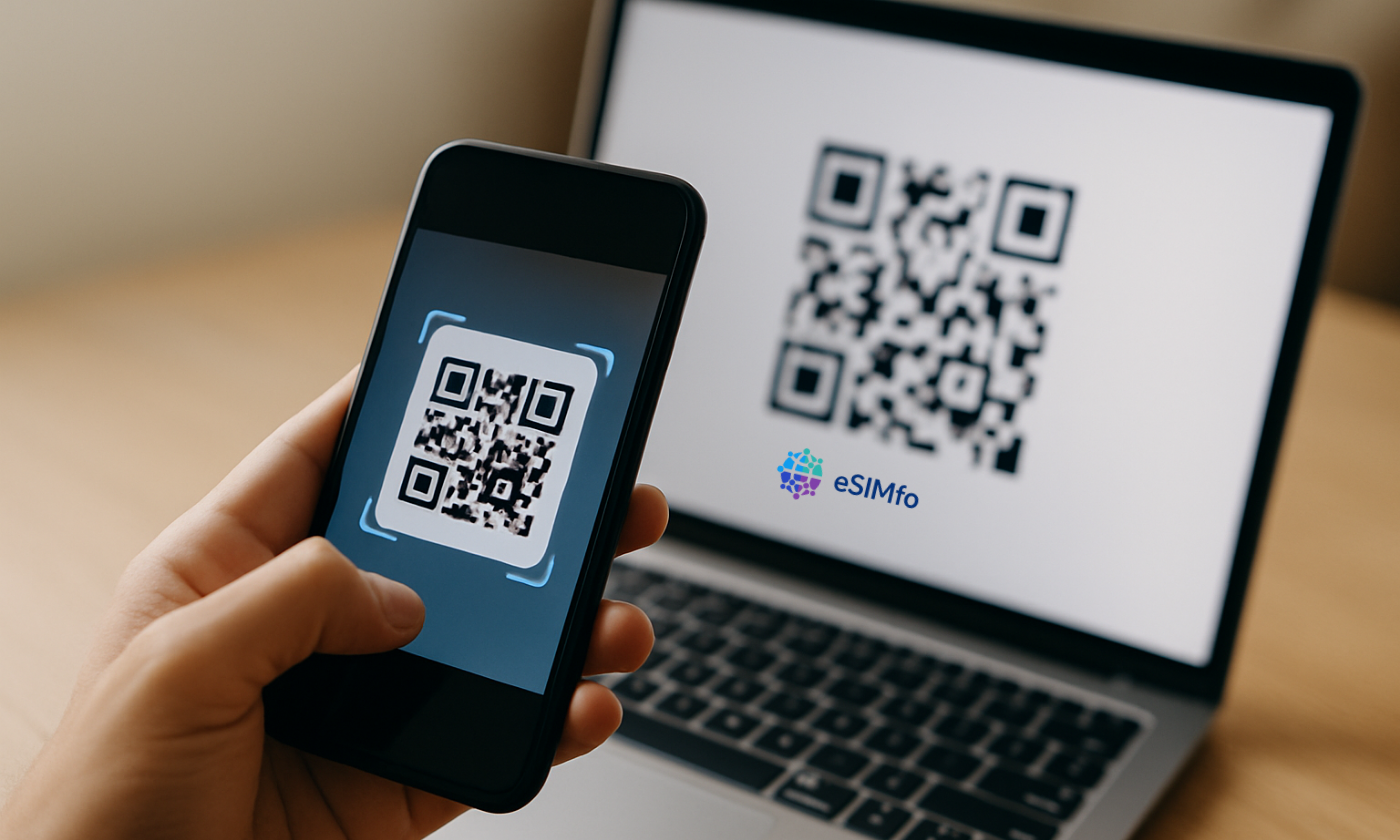
- Select Use QR Code and scan the code from your provider.
- Tap Continue and wait for the profile to download.
- Choose labels (e.g., Primary / Travel eSIM) and set your Default Line.
- Under Cellular Data, select the eSIM and turn Data Roaming ON when abroad.
- Settings → Connections → SIM Manager (Samsung) or Network & Internet → SIMs (Pixel).
- Tap Add eSIM → Scan QR code.
- Confirm and wait until the profile is added.
- Enable Mobile Data and switch Data Roaming ON when you travel.
- Set the eSIM as your Preferred SIM for data.
No camera? Install manually (SM-DP+)
Select Enter Details Manually and fill:
- SM-DP+ Address (from your order).
- Activation Code (format like XXXX-XXXX-XXXX-XXXX).
- Leave “Confirmation Code” empty unless provided.
APN & Data Roaming
iOS
Settings → Cellular → your eSIM → Cellular Data Network. If the APN field is blank, enter the APN from your plan details, save, then toggle Airplane Mode off/on.
Android
Settings → Mobile Network → Access Point Names (APN). Create a new APN if needed, select it, then restart mobile data.
Troubleshooting common issues
QR code not recognized
- Use bright lighting; clean the lens.
- Temporarily disable VPN/Private Relay.
- Try manual SM-DP+ entry.
No service after activation
- Turn Data Roaming ON.
- Select 4G/LTE/5G Auto in network mode.
- Verify APN and restart the phone.
Activation fails repeatedly
- Update iOS/Android and carrier settings.
- Remove unused old eSIM profiles (device limits apply).
- Power-cycle the device and re-scan.
Transferred/new phone
Most eSIMs are device-bound. Contact support for a re-issue when switching phones.
FAQ
How many eSIM profiles can I store?
Depends on the model. Many devices allow multiple stored profiles, with one active for data at a time.
Can I call & text with a data-only eSIM?
Yes via internet apps (WhatsApp, FaceTime, etc.). For regular voice/SMS, keep your primary line active.
Do I need Wi-Fi to activate?
A stable Wi-Fi connection is strongly recommended for smooth activation.